Anyone who works daily with documents, photos, or projects quickly notices how easily files become scattered across different folders and devices. I often draft the beginning of a new article on my phone. Because the Microsoft Word app is connected to my Microsoft Outlook account, the document is automatically saved to my OneDrive storage. Later, when I continue working on my computer, I first have to search through several locations before I finally find the file again.
When you open File Explorer in Windows 11, you’ll see “Quick Access” on the left side. This is a list of pinned locations that helps you quickly open frequently used folders, such as Pictures. However, these are only local folders stored on your Windows 11 device. If you want to open the photos stored in your OneDrive account, you need to look elsewhere. You end up checking multiple places, and before you know it, duplicate files start appearing. That raises the question: Which version of the document is actually the most recent one?
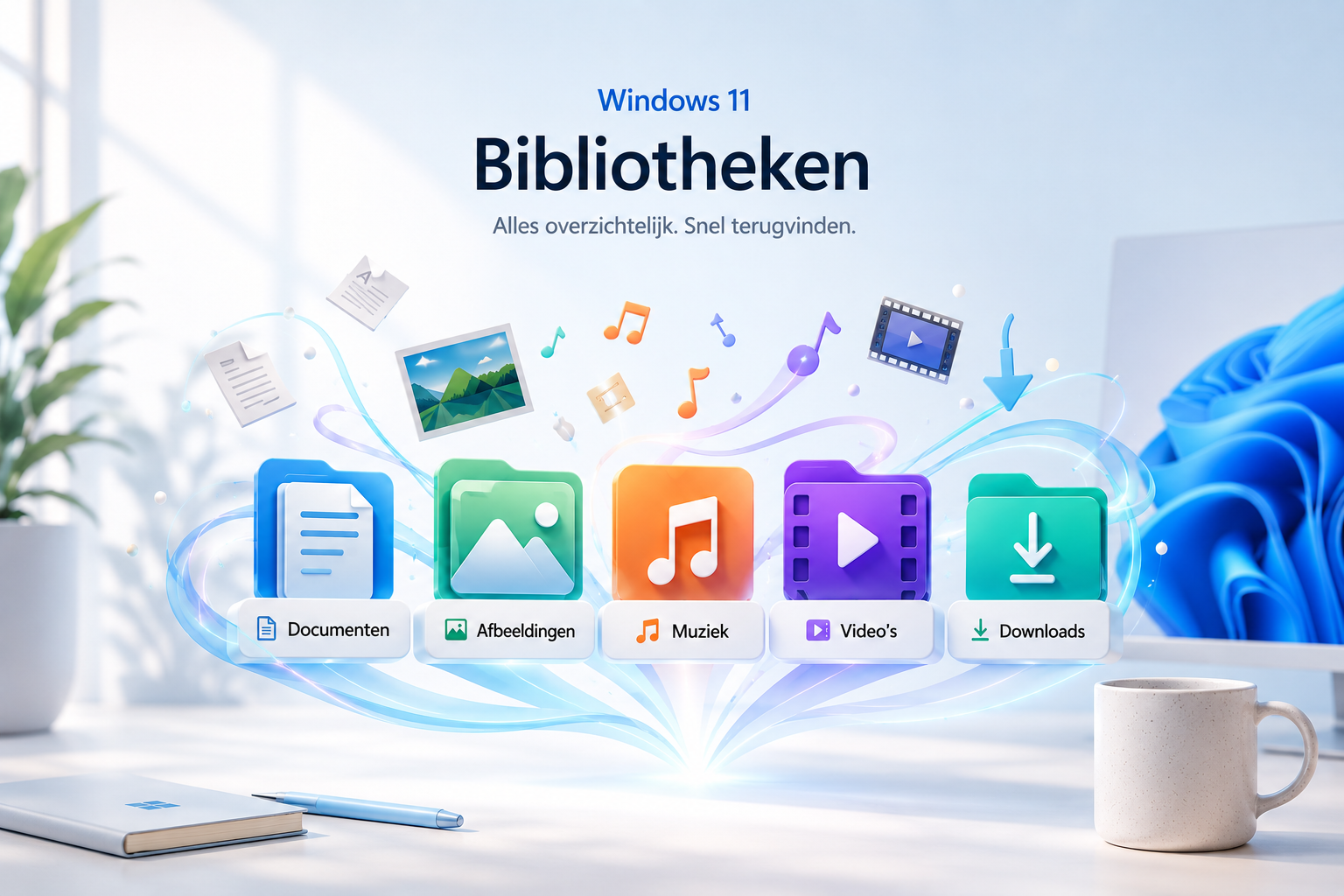
Windows 11 Libraries helps you organize your files when you work with multiple devices and cloud services.
Enable Windows 11 Libraries
Windows 11 offers Libraries as a solution to neatly combine local folders and cloud services. This feature is not enabled by default. Fortunately, you can turn it on easily by following these steps:
1) Open File Explorer
2) Click the three dots in the top menu.
3) Select Options.
4) In the View tab, scroll all the way down.
5) Under Navigation pane, check the box Show libraries.
6) Click OK to apply the changes.

Configure Windows 11 Libraries
After enabling Libraries, you will now see a new Libraries section in File Explorer. When you expand it, you’ll find the default libraries: Pictures, Documents, Music, and Videos. These libraries point to the same locations as “Quick Access”. The difference is that Libraries allow you to add multiple locations to a single library. And, as shown in the image next to this text, you can even create your own custom libraries.
Create your own Library

Because I use multiple cloud services, I created a library called Cloud. This allows me to switch between both cloud platforms much faster.
To create a new Windows 11 Library:
● Right‑click Libraries → New → Library.
● Give your new library a name and press Enter.
● When you open your new library, you can add a folder to it.

If you want to include your Pictures or Documents folder from OneDrive, you don’t need to create a new library.
Right‑click Pictures → Properties. Here you can add new library locations. You can also change the order of the folders. This determines which folder you see first: the OneDrive version or the local version on your computer. Simply drag a location up or down to reorder it.
You can also assign a custom icon to libraries you created yourself. (This option is not available for the default Windows libraries.)
Because Libraries give me a much clearer overview, Quick Access no longer adds value for me. That’s why I prefer to keep it empty by unpinning items. You can do this by right‑clicking each item individually and selecting Unpin from Quick Access. A tidy workspace feels so much better.
If you have any computer questions

Did you enjoy this article, and do you have your own tech question? You can send it in through the contact form. You can also leave a comment in the comment section below!
Kind regards,

About IT for everyone
These data tips are part of the series “IT for Everyone”. Are you curious about the background of this project? Read more on the page Your IT Professional.